One of my largest blog hits is how to hide Windows Live Messenger from your Start menu and keep it in your task try in Windows 7 as it did in Windows Vista.
You can see this post here: http://wp.me/piqX8-6
This also works for other icons you don't want to show including Skype.
Windows 8, well that a whole new story since its all about the Metro UI now and App Swapping. It will be interesting to see apps re-adopt to the new UI.
Showing posts with label Windows. Show all posts
Showing posts with label Windows. Show all posts
Thursday, September 29, 2011


Wednesday, September 14, 2011
Windows 8–Developers Preview
and so the era of a new OS begins. I am very excited to see the changes and new offering from Microsoft. A big step in the right direction. Here are some of the initial setup screens for your enjoyment…


And the updated win Explorer,,,

More to come…
Wednesday, November 18, 2009
SharePoint 2010 Beta 2 on Windows 7
And it really does work…

But it sure eats up a lot of memory! of my 6GB of Ram, I’m up to 70%

Tuesday, September 1, 2009
Microsoft Office 2010
A microsoftie, Kristin Bockius, posted some screenshots and commentary (that I cannot do under NDA) about the new Office 2010 system.
Some really great examples of some of the cool changes coming for the Office 2010 client.
http://blogs.msdn.com/bright_side_of_government/default.aspx
Some things to note in her screenshots is that there is no more “Office Orb” button on the top left and has been replaced by a “Office Tab” that opens a fantastic set of features standard and custom features to each product.
(Images below linked to her website…if they are broken, then they were pulled off her site).
![image_40[1]](https://g3zacq.bay.livefilestore.com/y1mlbCTzTRm04hACTHnJhGDO8bSbORdlSFzp83wfnG-QwyAwe78uUOUOV4S5p1u3fpa0SAFyevfrHnjBM7IliWXSyOL5yDk6I8CzUkv6bojHwiA5m_E1vEww9b-QCE8sxhbYM-sLgMLkWuYiPEutWeFfw/image_40[1][3].png "image_40[1]")
![image_38[1]](https://g3zacq.bay.livefilestore.com/y1m2LXptgZ0leg06sY7pr4gSm18ynyDDSVy-T0DCj5vOoXtgEob_CkyxOZOa2zk4_h-F8oRkVD6FDJhXCjQw_bDv6OwW2t4EifT_CR_30y-nNnaL15u8itDZ0wHGNw_yohO6zlRSMjg96MoyTsGJ0uf1Q/image_38[1][3].png "image_38[1]")
![image_46[1]](http://stevencwong.files.wordpress.com/2009/09/image_465b15d5b35d0c75b21a.png "image_46[1]")
Can’t wait to share more with the community on our findings.
S.
Sunday, August 9, 2009
Windows 7 RTM 64-bit install on a DELL XPS 1330
I opted to install the final RTM on my XPS 1330 as a new install. Moving from 32-bit to 64-bit does not allow for a direct upgrade.
My primary worry was my Virtual Machine running in Windows 7 RC….but i didn’t think to resume them and take them out of hibernation (my only mistake in my upgrade).
So…if you are making the move to the new RTM, make sure you log into any hibernated Virtual PC’s and shut them down.
Steps I took:
- Backup really important stuff…cause you never know

- Made a DVD from the Win7 ISO. I had to do a install from a DVD as it did not let me do an install from Disk because i was going from 32 to 64
- Rebooted the XPS 1330 and booted with the Win7 64Bit DVD
- During the Win 7 install, it asks you what partition to install too. It took the opportunity to clean up my Dell Factory shipped Partitions.
- Install went from 11:12pm to 12:20am. At that point i joined my WiFi Network and ran Windows Update.
- Installed Microsoft Security Essentials (64-bit) – Virus protection is important :)
- Downloaded the latest Windows 7 nVidia drivers nVidia here: http://www.nvidia.com/object/geforce_notebook_win7_x64_186.03_whql.html
- Installed Office 2007 Enterprise, Project, Visio, Sharepoint Designer, Windows Live Suite.
- Setup my Fingerprint to log into my new fresh Windows 7 Ultimate!

From this base installation, i then added my development support…
- Installed Virtual PC from Here http://www.microsoft.com/windows/virtual-pc/download.aspx
- Tested my Virtual PC’s…they failed due to the hibernation issue mentioned earlier. After it deleted the hibernation files, they booted perfectly. Virtual PCs include: Windows Server 2008 with MOSS 2007/Visual Studio 2008/SQL Server 2008, Windows XP
- Installed Windows 7 RTM 32-bit client as a Virtual PC
- Installed Office 2010 on the Win7 Virtual PC
- Tested integration…works like a charm.
Other software that i installed that worked were:
- DVDFab 6 – to copy DVD’s – a great way to keep our DVD library disks away from the kids and have them all on Media Center
- iTunes with QuickTime – iPhone still syncs
- VirtualCloneCD – virtual DVD’s (ISO’s) still mount
- Skype
- Reconnected my bluetooth devices – iPhone (for tethering), MS Presenter Mouse 8000 (for great presentations).
Next for the upgrade
- Toshiba M200 Tablet PC
- HP tx1000 Notebook
- HP Pavilion Slimline s3330f Desktop (our media center)
If there is anyone interested in the results of those upgrades, let me know.
Thursday, July 2, 2009
Windows 7 – Add your own search engines!
Love this feature i stumbled across Sarah Perez’s (Chanel 10 Blogger) site… http://cid-781010de23482939.profile.live.com/
She shows a way to add Windows 7 Search context’s to the Windows Explorer.
I took her example of how to search the Microsoft Support site and updated it with BING (she was using live), then found another one for Twitter and finally created my own for MSDN searches.
You can grab them from my skyDrive here:
http://cid-4320f28e64229e18.skydrive.live.com/embedrow.aspx/Public/Windows7SearchAdd-ins
Just download them, and open them up. Windows will ask you if its ok to register them and voila! You get search power right from Windows Explorer:

Hide Live Messenger from the Windows 7 Start Menu Taskbar
I just wanted my Messenger to hide the way it did in Windows Vista and XP.
Right now, when you minimize Windows Live Messenger, it takes up a lot of space in your taskbar.

So here’s a trick i found out when testing some code for Windows 7…
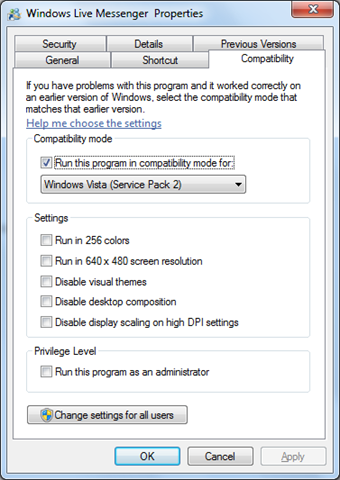
If you set the properties of an application to run as an older OS, it will allow the app to behave like it did in the “old” days.
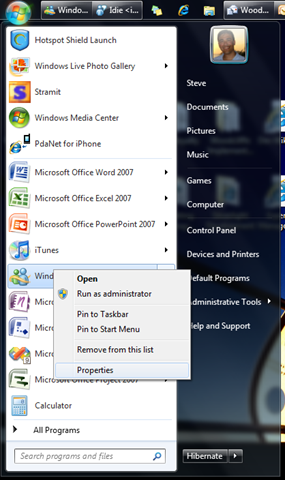
So find your Messenger in your “Start Menu” and right click on it and select “Properties”
Then from the Compatibility tab, set the mode to “Windows Vista”
Make sure to Restart Messenger and you done.
Now when you close your messenger window, it will run the way it did in the background accessible from your notification area.

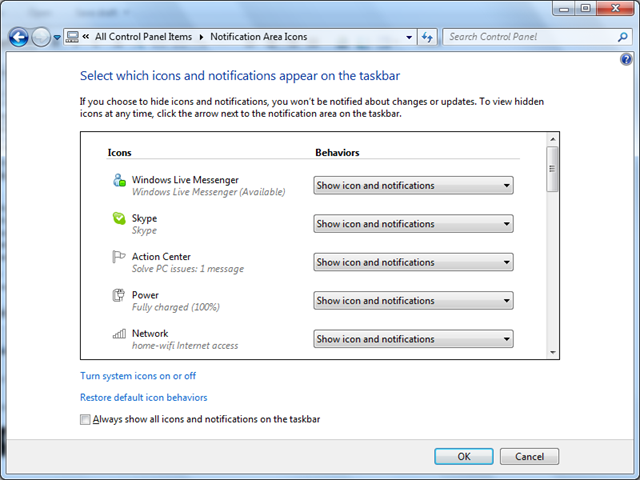
The last thing you might want to do is tell Windows 7 to always show the icon so you have it always ready to go…
From the Control Panel, click Notification Area Icons and set the Windows Live Messenger to “Show icon and notifications”.
Cheers
S.
Friday, May 1, 2009
Woo Hoo…Windows 7 Media Center Extender to Xbox 360 plays all types of video types!!!
Finally…Without having to install any extra codec products (like KLite or Shark007 Codec Pack) Windows 7 play all of my home video files taken with the variety of cameras and camcorders we have used over the last 10 years. What a joy to finally watch all our home movies right on Windows 7 as well as our XBOX 360 without any “conversion” like we had to back in the Vista/XP days.
I love Windows Media Center. Great job team. Gets better every release.
ps… the “play favorites” has become a family favorite feature.
Windows 7 RC and Dell XPS 1330 – smooth sailing
I'm happy to report that the install of Windows 7 RC went very well on my Dell XPS 1330. I'll write more about i
Its so much faster than the Beta.
Only issue, Norton 360 3.0 seems to have issues where there were no issues with the Beta.
More later…
ps
MS has gotten really creative with their wall papers and account pictures
Wednesday, April 15, 2009
Codec and “Windows 7” Explorer Crashing
I recently found out that due to corrupt or incompatible codec’s installed on my upgraded Windows 7 (from Vista), Windows Explorer will crash when it tries to produce “Thumbnails” for the icons it is trying to represent.
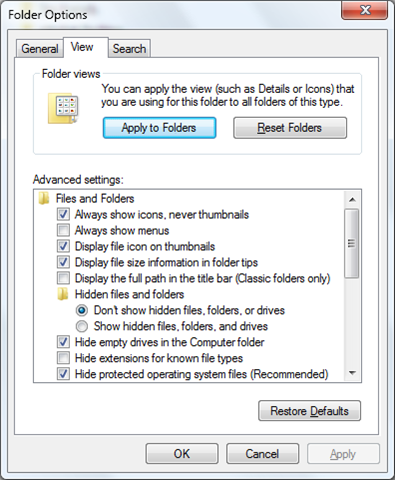
I had to turn enable “Always show icons, never thumbnails” to get Windows 7 to be stable. Love the thumbnails feature, but love a stable OS more. the OS is fun and solid for a beta…too bad something like faulty codec’s can break the explorer.
Sunday, March 22, 2009
Linksys Powerline AV Adapter
I tried this technology a few years ago and did not have much luck with it. 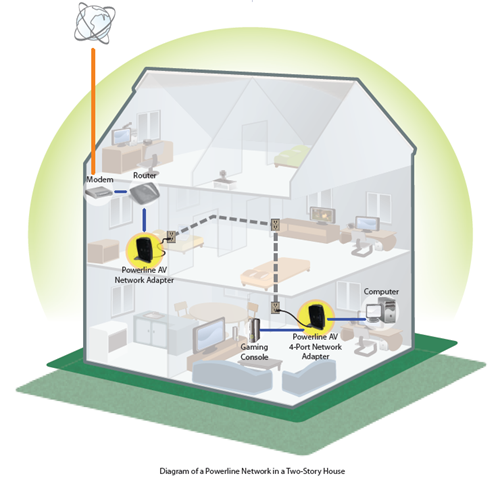
A little while ago, we added a Powerline-based security-IP camera to our network from Logitech. Its a really cool system and easy to setup. Web cam plugs in outside directly into an outlet. Then you plug another box right beside your PC/Server (one side into an outlet directly and the other into a USB port) and blamo, you got a direct network connection from the security camera right to your PC/Server.
I figure i’d try Linksys’ second generation Powerline systems to connect my Windows Home Server 2003 to our network. It was working over a Wireless N Network well, but was chewing up valuable Wireless bandwidth, plus, the Linksys Wireless N USB Adaptor would give up about once every two weeks under load requiring the server to be reboot (yuck).
I swapped out the Linksys Wireless N USB card on the server with a Powerline AV Adapter Kit HD (PLK300) and its been working great for a few months now.
This diagram shows how it uses your power plugs as a network.
Sunday, February 15, 2009
Windows 7 and XBox 360 Media Center Extenter
Tonight, i finally got a chance to try to see what the XBOX 360 Media Center Experience would be like when connected to Windows 7. I am so happy to finally be able to stream and watch home video's on my xbox extender. Before, my AVI, MPG,etc files (taken with casio, canon, sanyo, and only cameras) would not play through the xbox extender, using Vista; but Win7 it works!!!. Our hi-def videos show perfectly. It also has a great screen saver cycling through our photo library. perfect for where our xbox extender is; in our dining room.
Wednesday, January 14, 2009
Windows 7 – NVIDIA GeForce 8400M GS Beta Driver
Windows 7 Updated provides a beta driver for my XPS m1330 NVIDIA card:

I’ve had a lot of stability issues with this update. Good thing that “Rollback Driver” still works in Win7 :) Update at your own risk.
S.
Saturday, January 10, 2009
Windows 7: Security Providers
As per my last post, Norton Anti-virus that came with my ISP (Rogers) did not make the upgrade to Windows 7 Beta. When opening the application, it stated that it required to be reactivated. When running the activation, it complained that it was not a supported OS. Even worse, i was not able to uninstall it. However, i did find this link:
Thankfully, Norton provides a FREE trial till March 27, 2009 of their Norton Anti-virus software (Norton 360) for Windows 7 (along with AVG and Kaspersky Lab). Norton 360 found my broken previous Norton install and removed it for me before installing itself.
The new version is so much cleaner and simpler that what i had before. Nice work Norton.
Thursday, June 12, 2008
Windows Home Server Power Pack Beta 1
The Home Server team released the new Power Pack and it has some nice improvements.

First it resolved one of my backup issues with our primary Media Center PC where it was not able to backup the Hot-Swap drive. Bug fixes are good.
It also now lets you multi-select files and download them from the server as a compressed zip. Yippie! It even shows thumbnails for photo's (but not for videos).
The new Home Connect software that runs on each PC in the home now has a self update feature...self maintaining software is a great Father's day gift...Thanks MS...Less "IT Support Dad", more time for cool technology.
Wednesday, February 27, 2008
Worldwide Telescope
It looks like Microsoft has taken their cool PhotoSynth technology and applied it to Space Exploration. In Q4 of last year, they pushed Photosynth into Virtual Earth letting you pan and zoom photographic data taken by helicopters across the earth. It now seems like they have done the same but with satellite images and earth images of Space.
Worldwide Telescope is said to be available in the Spring of 2008. Should be really cool.
If you have not tried Photosynth yet...check this out: http://labs.live.com/photosynth/ or check it out by downloading the 3D viewer from Virtual Earth (http://local.live.com)
S.
Friday, February 15, 2008
Thoughts on MS Home Server (and the COOL WebGuide4 Add-in)
I recently installed the new Windows Home Server to help manage our computer backups and share video, pictures and movies across our network (diagram pre-Home Server).
Home Server has been a really cool (and inexpensive**) add-on to our home network. It provides us with:
- Daily backups of all home-connected computers
- Streams pictures and SOME video nicely to our XBOX 360 - Add WebGuide4 and IT ROCKS!!!
- Centralized storage of our data
- Remote connection to your PC (as long as its Vista Ultimate or older XP OS')
** HP is one of the first companies to sell Home Server machines to the public. However, you could take an older PC in your home and install an copy of Home Server with a purchased copy from companies such as this.
Backups
Our daily backups are seamless. Initially each computer took about 2 hours to do a full backup. After the initial backup image, they take about 10-15 min each night....and those times are over a Wireless Network...both Server and client. Yes! Our Windows Home Server is not even connected via a network wire, but rather a Wireless-N connection. I was worried about the server running wirelessly initially since its not a supported configuration...but i have had ZERO problems with in and its been running for a 1.5 months now. I still plan on having someone come in to run a buried wire to my router...but i gotta find the time.

Picture, Video, Music streaming
Out of the box, the experience for this could be MUCH better. Thankfully, Home Server is a developer-friendly environment and companies like ASCII EXPRESS have filled the void where MS couldn't in time for the release (or lack of will). Without add-ins you can have up to 10 registered users access your Home-Server and users have this kind of view to shared video, picture and music:


After installing the FREE add-in from a ASCII Express ( a guy who has now been hired by the Microsoft Windows Media Center Team), your video, picture and music experience is more like this:

It even lets you streaming music and video over the web:

And the Photo sharing experience is wonderful. Thumbnail views, Zooming and panning capabilities, and even picture details.
WebGuide4 just such a slick User experience. A MUST for any Home Server.
A list of other add-ins for WHS can be found here
Storage
Being able to store data centrally is great. But what is even cooler is you can grow your storage space as easily as plugging in another USB External Hard Drive! Here you can see i've added a 500GB USB Drive to my existing 150GB for storage:

You can also ask Home Server to "Duplicate" some of your important folders (such as family photo's or video's) so that in case of a major hard drive failure you are protected.
Remote Access to your Computers
Being able to access any of your home computers remotely is really cool...Unfortunately, it only works if you have specific versions of the operating system on your computer for Home Server to connect too. Most home computers today will come with Windows Vista Home Premium....and Home Server does not consider this an acceptable computer to provide remote access too. You have to be running Vista Ultimate for Remote to work (or older XP editions which is odd). I think the Home Server team should talk to the Vista team and unlock this feature for Home Server access. How many times did i get a call from home asking for remote help? Now i have to upgrade of our Home PC's to Ultimate just to get this?! Please fix this MS on your next release!!!
Things that could be better
Clear Direction on the Photo/Video story from Microsoft
The Media Center team needs to talk to the Home Server team (Media Sharing) which needs to talk to the Zune team which needs to talk to the Windows Live Team (Live Photo) which needs to talk to the XBOX 360 Team (MCE and/or Blade Video/Photo's). What's going on?! We need a common approach on how to store video and pictures and share them with our friends and devices. For example, Media Center has this neat way exposing a folder that contains both Video and Pictures. If you are in "Pictures", you have a cool "Related Video" link that allows you to show video's found in that same folder (ie related to these pictures). This approach is also how Windows Live Photo deals with the import of pictures and video from a camera that does both (like our Casio EX-880...which by the way does AWESOME HD Video). This is great! So your approach would be to move all video and photo's into the same directory...This is where is dies...cause if you do, you can't share it properly with Home Server...since home server requires you to have your video and photo's separate (ala Media Player). So why does this matter? Well, if you don't separate them, then you can't access the pics and video from your Home Server to your XBOX 360...or other media extender devices.
Synchronization across computers for family and friends
Microsoft bought a company many moons ago called FolderShare. MS quickly logo'ed it as a "Live Service" but has done nothing with it since. An alternative is MS Sync Toy, but is no where near as powerful, flexible, and more importantly, stable. I'd love to see FolderShare as part of the Home Server service
Centralized Recorded TV
There has been some work around this in the dev community, but no clear winner, but Home Server should be where ALL recorded video is stored and then streamed from. HP's Home Server implementation did something cool which is the addition of a streaming service to stream video (like WebGuide). I have not seen this in action, but I'm not sure if it allows for the recording of content direct to Home Server for streaming.
Home Organization
HP added a neat feature on their TouchSmart PC that parents and kids share a calendar, notes, tasks, etc. with each other. This should be a service of the Home Server accessible via the Home Server desktop panel.
Subscribe to:
Posts (Atom)